Documentation Index
Fetch the complete documentation index at: https://enrolla-gz-new-docs-for-auto-monitor.mintlify.app/llms.txt
Use this file to discover all available pages before exploring further.
Install the SDK
Run the following command in your terminal:go get github.com/traceloop/go-openllmetry/traceloop-sdk
In your LLM app, initialize the Traceloop tracer like this:import sdk "github.com/traceloop/go-openllmetry/traceloop-sdk"
func main() {
ctx := context.Background()
traceloop := sdk.NewClient(config.Config{
BaseURL: "api.traceloop.com",
APIKey: os.Getenv("TRACELOOP_API_KEY"),
})
defer func() { traceloop.Shutdown(ctx) }()
traceloop.Initialize(ctx)
}
Log your prompts
For now, we don’t automatically instrument libraries on Go (as opposed to Python and Javascript).
This will change in later versions.This means that you’ll need to manually log your prompts and completions.import (
openai "github.com/sashabaranov/go-openai"
)
func call_llm() {
// Call OpenAI like you normally would
resp, err := client.CreateChatCompletion(
context.Background(),
openai.ChatCompletionRequest{
Model: openai.GPT3Dot5Turbo,
Messages: []openai.ChatCompletionMessage{
{
Role: openai.ChatMessageRoleUser,
Content: "Tell me a joke about OpenTelemetry!",
},
},
},
)
// Log the request and the response
log := dto.PromptLogAttributes{
Prompt: dto.Prompt{
Vendor: "openai",
Mode: "chat",
Model: request.Model,
},
Completion: dto.Completion{
Model: resp.Model,
},
Usage: dto.Usage{
TotalTokens: resp.Usage.TotalTokens,
CompletionTokens: resp.Usage.CompletionTokens,
PromptTokens: resp.Usage.PromptTokens,
},
}
for i, message := range request.Messages {
log.Prompt.Messages = append(log.Prompt.Messages, dto.Message{
Index: i,
Content: message.Content,
Role: message.Role,
})
}
for _, choice := range resp.Choices {
log.Completion.Messages = append(log.Completion.Messages, dto.Message{
Index: choice.Index,
Content: choice.Message.Content,
Role: choice.Message.Role,
})
}
traceloop.LogPrompt(ctx, log)
}
} Configure trace exporting
Lastly, you’ll need to configure where to export your traces.
The 2 environment variables controlling this are TRACELOOP_API_KEY and TRACELOOP_BASE_URL.For Traceloop, read on. For other options, see Exporting.Using Traceloop Cloud
You need an API key to send traces to Traceloop.
Generate one in Settings by selecting
a project and environment, then click Generate API key.⚠️ Important: Copy the key immediately - it won’t be shown again after you close or reload the page.Detailed instructions → Set the API key as an environment variable in your app named TRACELOOP_API_KEY:export TRACELOOP_API_KEY=your_api_key_here
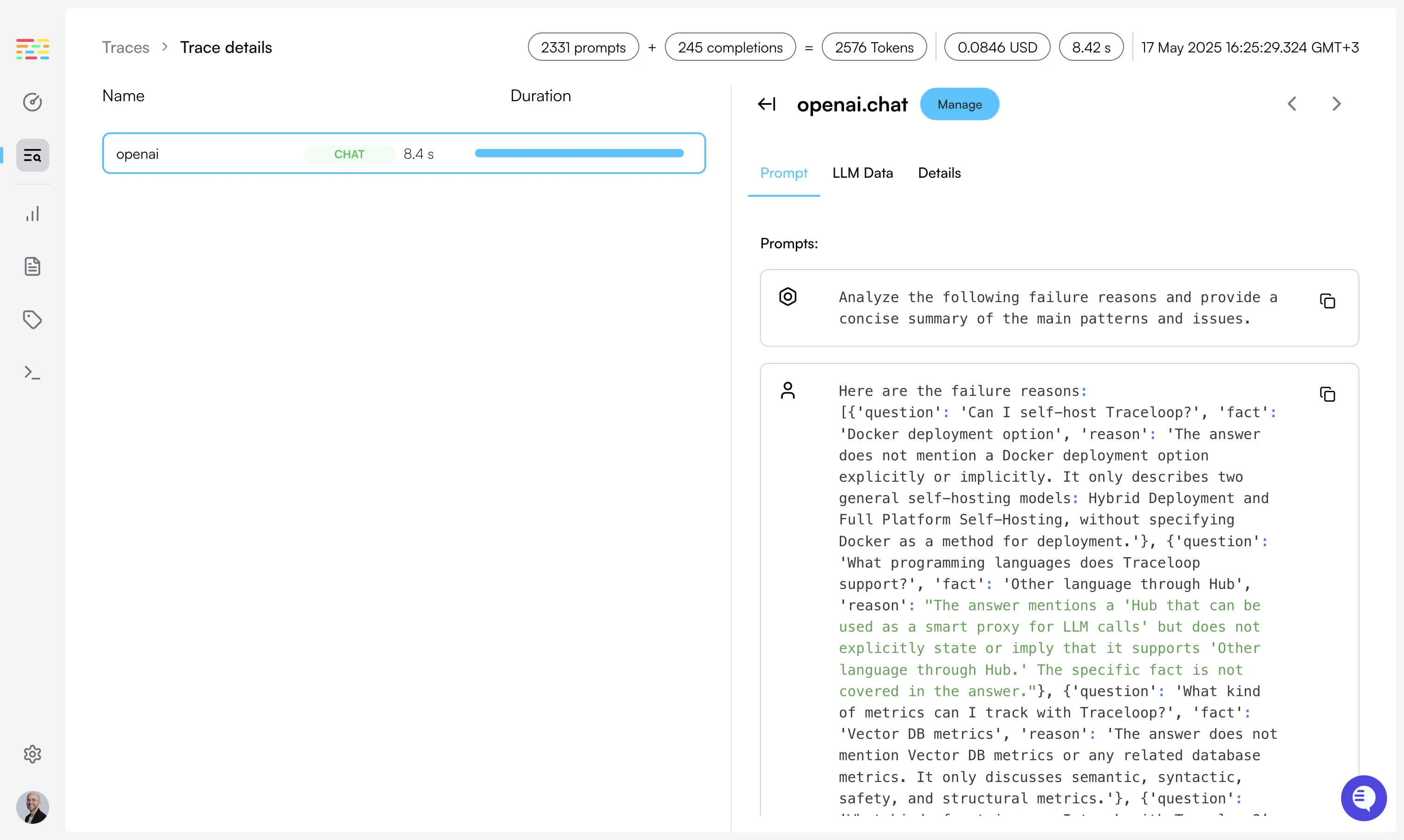
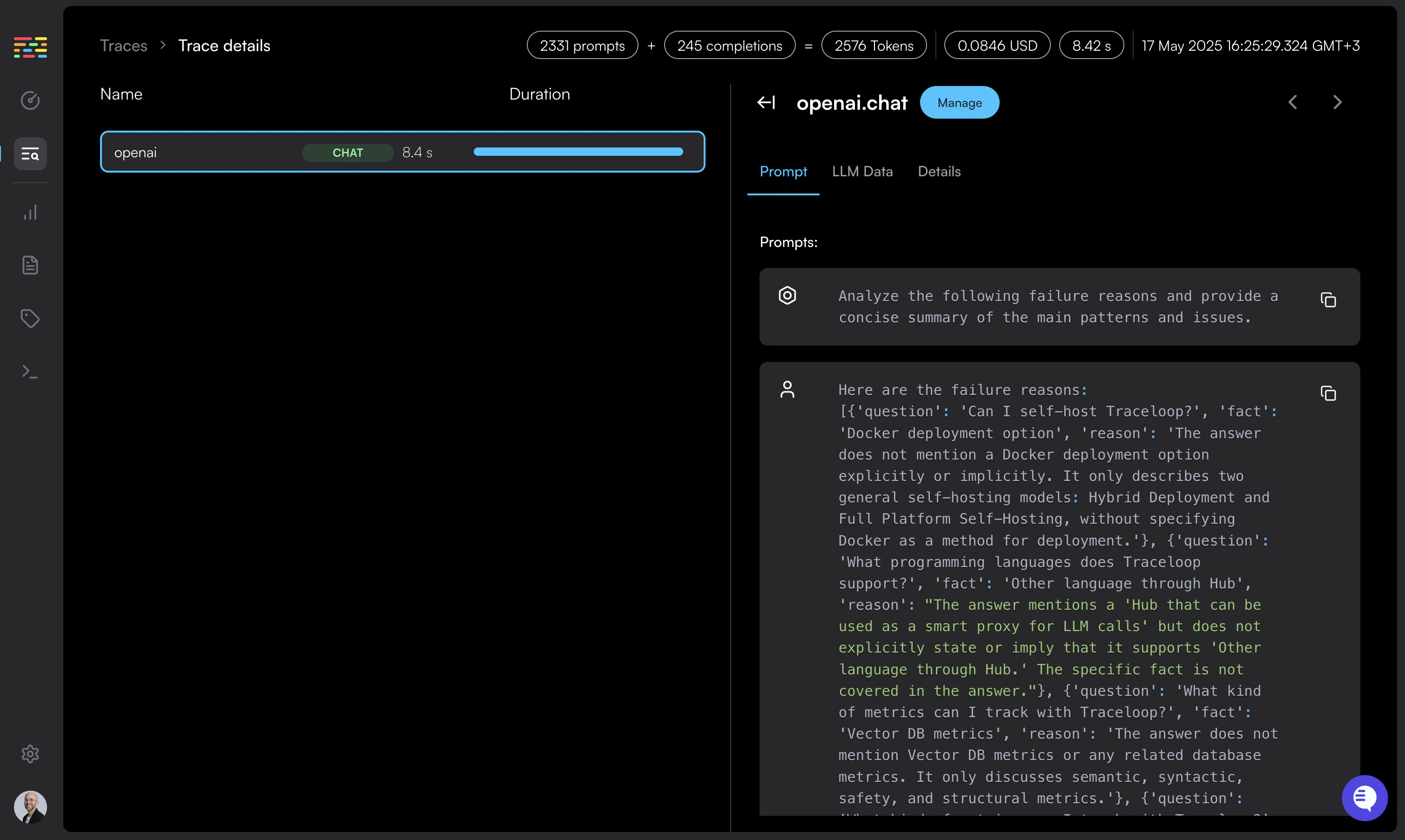
Done! You’ll get instant visibility into everything that’s happening with your LLM.
If you’re calling a vector DB, or any other external service or database, you’ll also see it in the Traceloop dashboard.Not seeing traces? Make sure you’re viewing the correct project and environment in the
dashboard that matches your API key. See Troubleshooting.